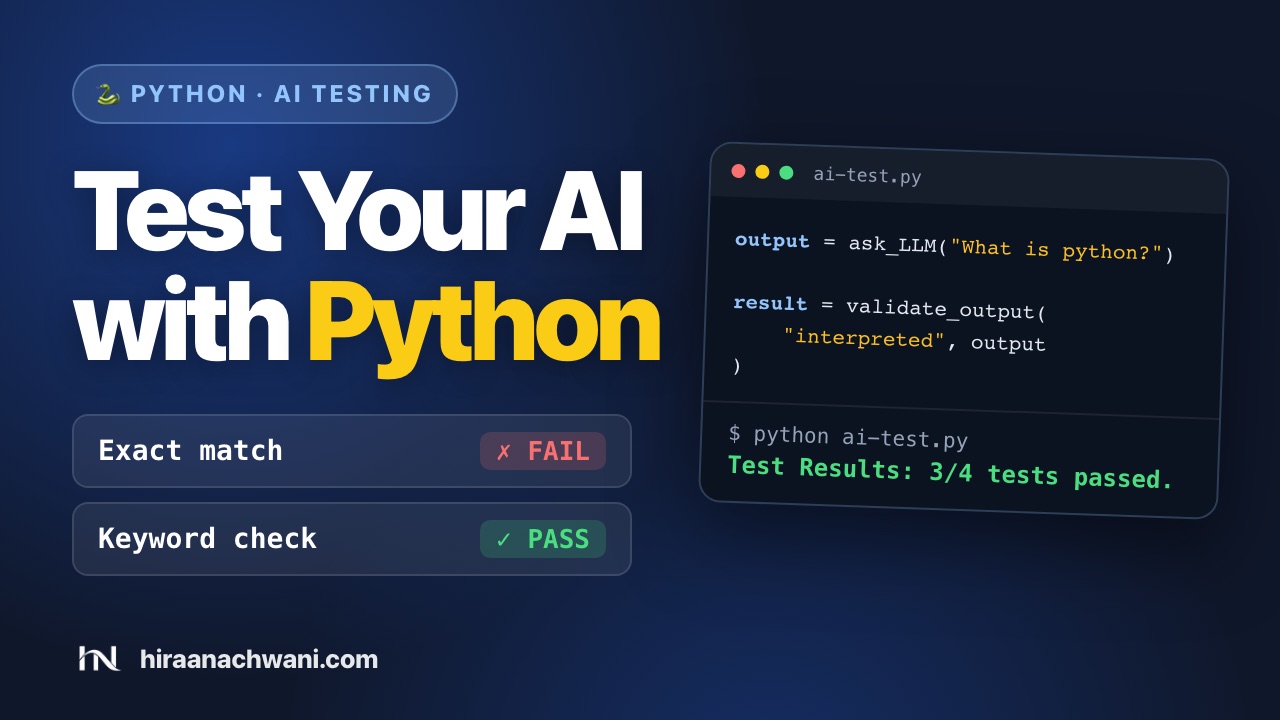
An AI app gives a different answer, in different words, almost every time. So you can't test it the way you test a normal form or button.
Imagine a learning chatbot. Students ask "What is Java?", "What is Python?" or "How do I write a loop?". For every answer you need to know: did it understand the question, is the answer relevant, and does it mention what it should? Checking that by hand works for five questions, not five hundred.
Normal software
AI apps
The same output every run
Different wording every run
Compare with one exact expected result
Check what the answer means or mentions
Rule-based checks
Quality checks: relevant, accurate, safe
An example
You ask "What is Python?" and expect "Python is a programming language." The AI replies "Python is a high-level programming language used for application development." An exact match fails, even though the answer is right. A keyword check, "does the answer mention programming?", passes. That keyword check is what we build here.
Setup
Do this once. You'll then have a project that runs every example on this page.
In Windows PowerShell, activate it with .venv\Scripts\Activate.ps1 instead. The openai library talks to the LLM, and python-dotenv reads your settings from a file.
2. Get an API key
An API key is a secret pass that lets your code use the LLM. This page uses Groq, which has a free tier. Any provider that works with the openai library will do, such as Google Gemini, or Ollama running on your own laptop.
3. Put your settings in .env
Create a file called .env in the project folder. To switch providers later, you change only these three lines, not your code.
Watch out: your API key is like a password. Never paste it into your code, a screenshot or a chat. If you use Git, create a .gitignore file with the line .env in it before your first commit, so the key never leaves your laptop.
Ask the LLM a question
Send one prompt from Python and get the answer back as text.
Why you need it
Every test starts with a question. One small function means each test is a single line: ask_LLM("What is Java?").
Without it
You repeat the connection code in every test. When the model or provider changes, you have to fix it everywhere.
Example
Create ai-test.py and start with this.
import csv
import os

from dotenv import load_dotenv
from openai import AuthenticationError, OpenAI

# Load values from the .env file so the script can access API settings.
load_dotenv()

# Create a client for the configured LLM provider.
client = OpenAI(
    base_url=os.getenv("LLM_BASE_URL"),
    api_key=os.getenv("LLM_API_KEY"),
)


# Send a prompt to the LLM and return the generated response text.
def ask_LLM(prompt):
    response = client.chat.completions.create(
        model=os.getenv("LLM_MODEL_NAME"),
        messages=[{"role": "user", "content": prompt}],
        temperature=0,
    )
    return response.choices[0].message.content
What each part does
client
Remembers which service to call and your key. Think of it as the waiter who takes your order to the kitchen.
messages
The conversation so far. Here it's one message from the user: your prompt.
temperature=0
Makes the answers steadier from run to run, which is what you want in a test.
choices[0].message.content
Where the answer's text lives inside the response.
Check the answer
Pass if the answer mentions the word you expect, fail if it doesn't.
Why you need it
The AI's wording changes, but a correct answer about Python should still mention that it's interpreted. A keyword check copes with the different wording.
Without it
You compare the whole answer with one expected sentence, and almost every test fails, even when the answer is right.
Example
Add this below ask_LLM. Both texts are lowercased first, so "Interpreted" and "interpreted" both count.
# Check whether the response contains the expected word.
def validate_output(expect, actual):
    if isinstance(actual, str) and expect.lower() in actual.lower():
        return "Pass"
    return "Fail"
Know the limit: a keyword check is a starting point. A correct answer that uses different words, like "runs line by line" instead of "interpreted", still fails. Meaning-based checks fix that, and they're coming in the next part.
Keep test cases in a CSV file
One row is one test. To add a test, add a row. No code change needed.
Why you need it
Testers, and even people who don't code, can add questions in a spreadsheet. The script stays the same however many tests there are.
Without it
Every new question means editing the Python file, and the list of tests is buried in code.
Example
Create test_cases.csv next to ai-test.py.
id,category,prompt,expected_output
TC01,Python,What is python?,interpreted
TC02,Java,What is java?,compile
TC03,Java,What is java?,interpreted
TC04,Javascript,What is javascript?,interpreted
TC03 is meant to fail. Java is compiled to bytecode, so a good answer shouldn't call it interpreted. A test that you know should fail proves your check can actually catch a problem.
Run every test in one loop
Read each row, ask the question, check the answer, and count the passes.
Example
Add this at the bottom of ai-test.py. csv.DictReader gives you each row with its column names, so row["prompt"] is the question.
# Read test cases from a CSV file, run each prompt, and summarize the results.
passed = 0
total = 0

with open("test_cases.csv", newline="") as file:
    for row in csv.DictReader(file):
        try:
            output = ask_LLM(row["prompt"])
        except AuthenticationError:
            print("Authentication failed. Please check your API key.")
            break

        total += 1
        result = validate_output(row["expected_output"], output)
        if result == "Pass":
            passed += 1

print(f"Test Results: {passed}/{total} tests passed.")
Handle a bad API key
The try and except in the loop turn a long, scary error into one clear message.
Why you need it
A wrong or expired key is the most common first problem. The person running the tests should know what to fix straight away.
Without it
Python prints a long traceback from deep inside the openai library, and a beginner has to dig through it to find the cause.
How it works
try attempts the API call. except AuthenticationError runs only if the key is rejected: it prints the message, and break stops the loop, because every other test would fail in the same way.
Try it
On macOS or Linux you can test this without editing .env. A value set on the command line wins over the one in the file.
LLM_API_KEY=not-a-real-key python ai-test.py
What you'll see
Authentication failed. Please check your API key.
Test Results: 0/0 tests passed.
The summary still prints, with 0/0, because it sits after the loop. That's fine here: the first line already tells you what went wrong.
Run it
Run the whole suite with one command.
python ai-test.py
What you'll see
Test Results: 3/4 tests passed.
Here's what happened to each test when I ran it. The answers are trimmed.
Test
Expected word
Result
Start of the AI's answer
TC01
interpreted
Pass
"Python is a high‑level, interpreted programming language that emphasizes readability…"
TC02
compile
Pass
"Java is a high‑level, object‑oriented programming language and computing platform…"
TC03
interpreted
Fail, as planned
The same Java answer. It never calls Java interpreted.
TC04
interpreted
Pass
"JavaScript is a high‑level, interpreted programming language that is primarily used…"
Every fail is a question: is the AI wrong, or is your check too strict? Here, TC03 failing is the AI being right. On a real project, read the answer before you decide which one to fix.
What's next
You now have Python running AI tests automatically, with a clear error for a bad key and a pass/fail summary for every run.
In the next part: saving results to a CSV report, meaning-based checks with DeepEval, so a correct answer in different words still passes, and running the tests with pytest.
Every result on this page comes from a real run of the script. Testing web apps too? Try the Playwright practice pages. Found a problem? Let me know.